Delete a Criteria Set
To delete a named criteria, if it is no longer needed, follow these steps:
Click the
 button on the Criteria Set: New Criteria
Set screen (see image below) or from the Criteria Set screen when
viewing/creating/editing a criteria set. The Load Criteria Set dialog
box appears. This dialog lists all of the named criteria sets. The
names are sorted first by alpha, then by alphanumeric, and lastly
by numeric order.
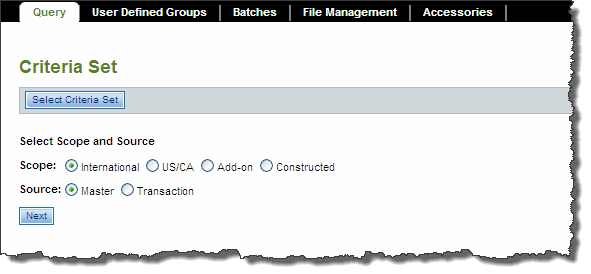
In the table, highlight the criteria set to be deleted.
Click the
 button located above the table. A pop-up message displays to confirm
the deletion of the selected criteria set.
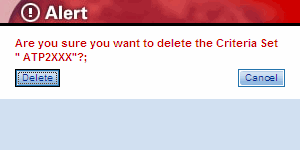
Click the
 button to proceed with the deletion or click the
 button to stop the deletion process. If you click
you will receive a green bar message that states the criteria set
deleted successfully.
Related Topics
- About Changes
- About Criteria Sets and Query
- About Exclusions
- About Inclusions
- About Matches
- Add, Modify, Restore To/Before, Cancel, Copy as Is, and Copy and Change to New
- Changes Field Descriptions
- Create Criteria Sets and Queries
- Delete a Criteria Set
- Exclusions Field Descriptions
- Inclusions Field Descriptions
- Maintaining Criteria Sets
- Match Options and How They Work with Change Types
- Matches Field Descriptions
- Preview Changed Fares and Submit to Batch
- Submit Preview
- Save and Copy a Criteria Set
- Scopes and Sources
- Selection Results and Changed Fares
- Modifying Fare Records
- Submit to Batch
- Update an Existing Criteria Set
- Submit Inquiry