Select a Batch
Batches that have a status of INCOMPLETE may be used for additional data or may be re-accessed for release.
-
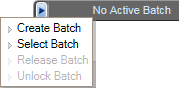
Click the Batch List tab and then click the Select Batch link. The Create/Select Batch dialog box appears. Alternatively, you can click the No Active Batch (or Active Batch if a batch is active) link on the dashboard and then click the Select Batch option on the menu (see image below).
-
Type an ID in the Batch ID field (may already be pre-filled) and carrier code in the Carrier field (may already be pre-filled) in the Search Batches group box and click the
 button.
 -
Scroll through the list of batches displayed in the Select Batches group box and select the batch (click the row) you want to activate. The selected batch will be highlighted.
-
Click the
 button. The batch should now be the active batch, which displays in the Status Bar (top right corner of the Services tab).
 -
Click the
 button at the bottom of the Select Batch tab to cancel your selection and/or updates and close the Create/Select Batch dialog box.