Batch List
Overview
The Batch List is used for searching and viewing undistributed batches. You can search using one or more of the search options (for example, Status, Effective Date, Comments, or Private Distribution). However, a batch ID or carrier code is required when preforming a search in the Batch List. The default value for all of the fields in the Find Batches group box is set to blank when opening the Batch List dialog box. When more than one search field is entered, the batches returned by the search will match all the entered search fields.
Click the Batch List tab. You can also use the shortcut keys, Alt + B, to access the Batch List screen.
Filter the Batch List
From the Filter box, type a batch ID and/or a carrier code in the appropriate fields. The batch ID consists of two fields, the first field represents the batch coder's initials (2-position alphanumeric value) and the second field represents the batch number (system assigned when the batch is created and up to five numbers in length). The carrier is a two-position alphanumeric value. For non-ATPCO users the Carrier field is pre-filled, but for ATPCO users this field is blank.
Make a selection from the Status drop-down list box. The valid values are Incomplete or Complete, or leaving the field blank. This is an optional field when performing a search for batches.
Type a date (DDMMMYY) in the Effective Date field or click the Calendar
 button to access the Calendar pop-up dialog where you can select a
date.
button to access the Calendar pop-up dialog where you can select a
date.Type up to 40 alphanumeric characters (including special characters) in the Comments field. The Optional Services program will return all batches with comments that have full or partial matches with the values entered in the Comments field.
Make a selection from the Private Distribution drop-down list box. The valid values are With (with Private Distribution) or Without (without Private Distribution), or leaving the field blank (with or without Private Distribution).
Click the
 button to initiate the program to search the database.
If no batches are found matching your search criteria, the Optional Services program displays a message (No Matching Batches Found) at the top of the dialog box.
Click the  button to clear all the
fields in the Find Batches group box so that you may begin a new search.
button to clear all the
fields in the Find Batches group box so that you may begin a new search.
Select for Use
After performing a search (using the above steps), click
a row (select a batch) in the table. The row is then highlighted. Click
the  button located above the
table. The batch is now locked by you. Notice your user ID in the Locked By column of the table.
button located above the
table. The batch is now locked by you. Notice your user ID in the Locked By column of the table.
You can also click a row in the table and right-click that row to access the pop-up menu. Click the Select for Use option from the list of available options.
Release
To release a batch, click a row (select a batch) in the
table and click the  button located at the top of
the table. Alternatively, you can right-click a row and click the Release option from the pop-up menu.
button located at the top of
the table. Alternatively, you can right-click a row and click the Release option from the pop-up menu.
Releasing a batch makes the data in the batch available for Subscriptions. Once the batch is released, you cannot use it anymore. A batch must be active before it can be released.
When you select to release a batch, the status is changed from Incomplete to Complete. Once a batch status has been made Complete, the batch may not be reused. This indicates the batch is now available for subscription processing.
You cannot release a batch with an effective date less than today. The batch's effective date must be equal to or greater than the system date to release the batch.
Scheduling a Future Release Date
You can schedule the release of a batch up to seven days in the future. To schedule a future release date, follow these steps:
Open the Batch List tab.
Select the row of the batch.
Click the calendar icon at the Schedule for Release Date field. A calendar will open. Select a date (up to seven days in the future). You can also type a date using the DDMMMYY format.
Select a release time using the drop-down menu in the Time field.
Click the Release button.
The scheduled release time will be indicated in the Release Date/Time column on the batch list.
If a batch has been scheduled to release on a future date, you cannot select it for use or unlock it from the Select Batch tab on the Create/Select Batch pop-up.
Effective Dates
The effective date of all sequences in a batch must be equal to or greater than the scheduled release date. If they are not, a pop-up window will display when you click the Release button. You can enter a new effective date to update the sequences. To do so, follow these steps:
Click the calendar. A calendar will open. Select a date. You can also type a date using the DDMMMYY format.
Click the OK button.
If further errors occur, you will have to update the individual sequences manually.
Cancelling (Recalling) a Scheduled Release
To cancel (recall) a scheduled release, follow these steps:
Open the Batch List tab.
Select the row of the batch.
Click the Recall button.
Unlock
To unlock a batch, click a row in the table (select a batch)
and click the  button located
at the top of the table. Alternatively, you can right-click a row and
click the Unlock option from the
pop-up menu.
button located
at the top of the table. Alternatively, you can right-click a row and
click the Unlock option from the
pop-up menu.
Only the user who currently has the batch locked is permitted to make edits to the batch. You can unlock a batch locked by another user. When doing so, the Optional Services program confirms the unlock intent with a message at the top of the Batch List dialog box.
Modify Effective Date
To change the effective date for a batch, right-click
a row in the table and click the Modify
Effective Date option from the pop-up menu. Type a date
(DDMMMYY format) in the Effective
Date field or click the Calendar
|
|
 button to save your date
changes and close the pop-up dialog box. Click the
button to save your date
changes and close the pop-up dialog box. Click the  button to ignore any date changes and close the
pop-up dialog box.
button to ignore any date changes and close the
pop-up dialog box.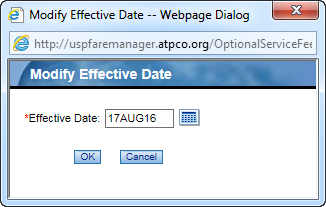
Modify Comments
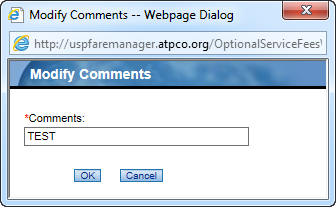
To change the comments for a batch, right-click
a row in the table and click the Modify
Comments option from the pop-up menu. Type up to 40 alphanumeric
characters (including special characters) in the Comments field.
Click the |
|
View Contents
To view the contents of a batch from the Batch List dialog
box, click a row (select a batch) in the table and click the  button at the top of the table. Alternatively, you can
right-click a row and click the View
Contents option from the pop-up menu. For further information about
viewing batch contents, see the View
Batch Contents Help topic.
button at the top of the table. Alternatively, you can
right-click a row and click the View
Contents option from the pop-up menu. For further information about
viewing batch contents, see the View
Batch Contents Help topic.
Restore Incomplete Segments
See the Restore Incomplete Segments Help topic for information on this option.
View Counts
To view the record counts for a particular batch, right-click a row/batch in the table and click the View Counts option from the pop-up menu. The record counts for the selected batch displays under the Filter box.
The Record Count displays the number of segments updated by the selected batch. For example, if a batch has three segments and each control has four sub-segments, then the total record count to displayed is 12. You can only select one batch at a time to view record counts.
Refresh
To refresh the Batch List table and display the latest
changes, if any, click the  button at the top of table.
Click the  icon,
located below the grid, to print the contents of the Batch List grid.
When the Print dialog box displays, click the OK
button.
icon,
located below the grid, to print the contents of the Batch List grid.
When the Print dialog box displays, click the OK
button.
Right-Click Menu
Right-click a row to access the pop-up menu with the following options:
Select for Use
Release
Unlock
Modify Effective Date
Modify Comments
View Contents
Restore Incomplete Segments
View Counts
Related Topics