Downloads and Downloads Status
Areas within the Fares program where the Download tool is utilized:
|
Tab Name |
Screen Name |
Sub Tab/Group Box/Table Name |
|
Query |
Criteria Set |
Selection Results tab |
|
Query |
Criteria Set |
Changed Fares tab |
|
Batches |
Search/Action Batches |
Batch List group box/table |
|
Batches |
Search/Action Batches |
View Batch Details |
|
Batches |
Search/Action Batches |
Edit Batch Details |
|
Batches |
Create New Batch |
|
|
File Management |
File Management Summary |
|
To perform a file download, follow these steps:
-
To perform a download, click the
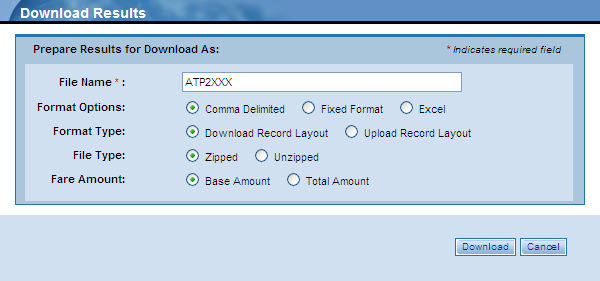
 button, or right-click a row in the table and then click the Download option from the pop-up menu. The following dialog box appears.
-
Type a name for the file you are downloading in the File Name field. This is a required field.
-
Click either the Comma Delimited, Fixed Format, or Excel radio button. The default is set to Comma Delimited.
-
-
Comma Delimited—Type of data format in which each piece of data is separated by a comma
-
Fixed Format—Type of file where each column holds a constant width
-
Excel—MS Excel spreadsheet
-
-
-
When Excel is selected and the number of transactions exceeds 60,000 records, the file will automatically be converted to a zipped comma delimited file.
-
-
Click either the Download Record Layout or Upload Record Layout radio button. The default is set to Download Record Layout.
-
-
Download Record Layout—The download format for the area within Fares from which the download is being requested (for example, Selection Results, Changed Fares, and Batch).
-
Upload Record Layout—The upload format for the Scope of the fares being downloaded (for example, International, Add-ons, and US/CA).
-
-
Click either the Zipped or Unzipped radio button. The default is set to Zipped.
-
-
Zipped—Type of file format that compresses the data to reduce the file size
-
Unzipped—File is not compressed
-
-
-
When a requested download exceeds 5MB, the file will automatically be converted to a zipped file.
-
-
For US/CA downloads, click either the Base Amount or Total Amount radio button. The default is set to Base Amount.
-
-
Base Amount—Amount of the fare without tax
-
Total Amount—Amount of the fare with tax
-
-
-
The Fare Amount option is available for US/CA downloads only. The option is enabled or disabled depending on other selected download criteria.
-
-
Click the Yes radio button to Include Alpha 5 Star Fare Class and Add-on Zone in the downloaded Excel file. (The download format must be set to Excel.) The add-on record will include the add-on zone which contains the cities applicable to construct “to” and does not relate to the origin and destination cities that are in this add-on record.
-
Click the
button. -
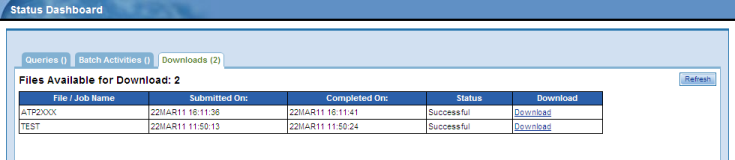
The Downloads tab on the Status Dashboard appears.
-
From the Downloads tab, click the Download link under the Download column for the file you want to either open or save to your computer (see image below).
-
-
File/Job Name—file name as provided by you for the download results
-
Submitted On—date and time that the download was submitted
-
Completed On—date and time that the download completed
-
Status—status of the download
-
Download Statuses are:
|
Queued |
The download is queued for processing. |
|
Cancel Requested |
The request to cancel a download has been submitted.
|
|
Cancelled |
The download has been cancelled by ATPCO. |
|
Successful |
The download is complete. |
|
Failed |
The download has failed. |
|
Initial |
The download is waiting to be queued. |
|
Executing |
The download is in progress. |
-
-
Download—hyperlink to the completed download results
-
-
-
Click the
 button to update the data list with the most current information.
-
-
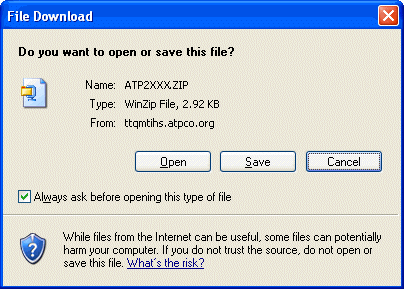
Upon clicking the Download link on the Downloads tab (seen in the image above), the File Download dialog box appears (see image below) if you’ve selected a zipped file; otherwise, the downloaded file will open in the format requested (for example, Excel, Comma Delimited, etc.).
-
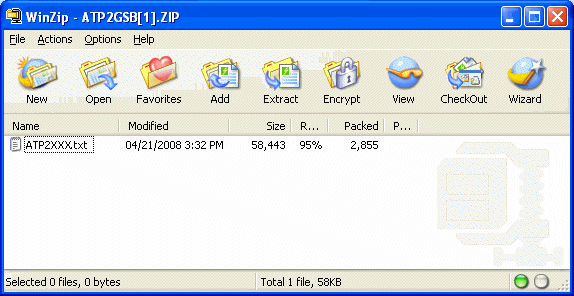
Clicking the Open button on the File Download dialog box (above image) prompts a program such as WinZip (see image below) to open, which displays the text-only file. Double-click the file name to display the file in a program such as Notepad or WordPad.
-
If you are a Windows user, you will already have this program on your computer and you do not have to purchase any software. However, other products such as TextPad and EditPlus will also work. The list of text editing software is extensive, ranging from software that can be purchase to freeware and shareware (software that is available for use at no cost ). Check with your system administrator for further assistance.
-
-
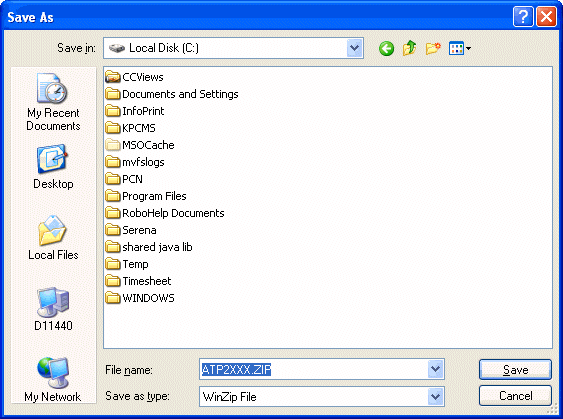
Clicking the Save button on the File Download dialog box prompts the Save As dialog box to appear. Use this dialog box to select a folder in which to save the file and give the file a name. Click the Save button after selecting a folder and entering a name in the File name field.
Downloaded Fares Record Layouts
There is a record layout to support downloads for each Scope (International, US/CA, and Add-on), as well as for the location within Fares from which the download is performed (Selection Results, Changed Fares, and Batch). Please go to my.atpco.net for more information.
Related Topics