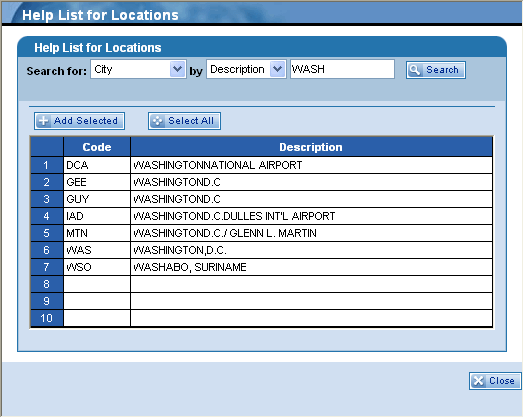
The Locations dialog box provides the ability to search for location codes and to view their descriptions. To search for and select a location, follow these steps:
-
Click the Search for drop-down list and make a selection from the list of available options (Area, City, Nation, State/Province, or Zone). Area is the default option for this field.
-
Click the by drop-down list and make a selection from the list of available options (Description or Code). Description is the default option for this field.
-
In the blank text field, type the value in which to search. This is a "starts with" type of search function. For example, if you type WASH in this field (searching for City and by Description), the program returns results for every location starting with WASH.
-
Click the  button. The table is populated with all the possible results.
-
You can select a single row, multiple rows, or all the rows displayed in the table. (To select more than one row, press and hold the left-mouse button and drag the mouse up or down selecting those rows.) Click the  button to select all the rows in the table.
-
Click the  button once you made your selections.
-
Once you have selected and added locations, the dialog box closes automatically. However, if you decide not to make a selection from this dialog box, you can click the  button to exit this feature.